Minor revisions or amendments to student IEPs will often create the need to print a single page of a student’s IEP. The print menu allows you to select individual pages of a student’s IEP, but you will need to know which page contains the content you are looking for.
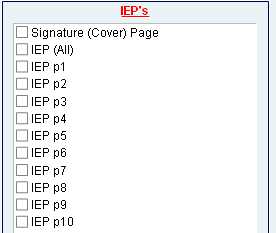
Because every student’s PLAAFP is different, each IEP is a different length. One student’s “Program Modifications & Accommodations” may appear on page 3, while a different student’s may print on page 5. To avoid printing extra pages, you can preview a printed version of the IEP first, to be sure you are printing the correct page.
1. Select the student record that you wish to print, and click on the “Preview IEP” tab at the top of the screen:

2. When the preview of the IEP comes up, use the rolodex arrows in the upper left hand corner to scroll through the individual pages of the IEP:
3. Once you’ve located the page you need, hit ‘ENTER’ on your keyboard, or click the blue “Continue” button: 
4. The database will then prompt you with a series of popup windows:
Print this IEP? (hit Cancel)
Print Assessment Participation Page? (hit Cancel)
Preview Additional Comments Page? (hit Cancel)
Preview Goals and Objectives? (hit Cancel)
5. The database will take you back to the Print Menu. Use the checkboxes to select the individual IEP page(s) that you wish to print, and hit the “Print Selected Forms” button.
